Paint audio onto your maps. Orchestrate it with layered cues. Broadcast
the mix straight to every player's headphones — no apps, no setup. Your
next session will sound like nothing they've heard in any other game.
↓
At The Table
This Is What A Session Sounds Like
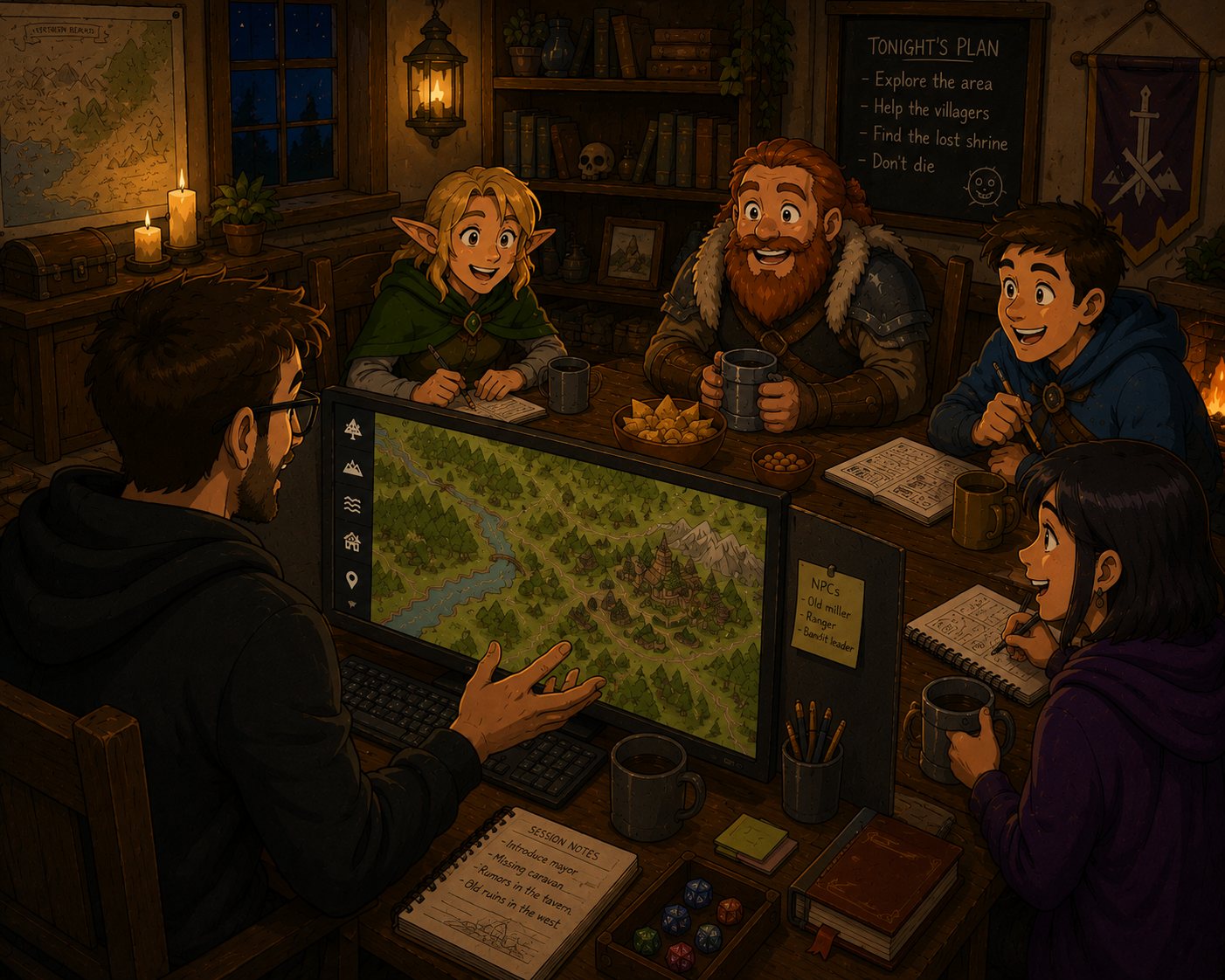
One screen. The whole table leans in. The soundtrack does the rest.
♪♫♩♬♪♫♩♬♪✦✧✦
Why Sound Matters
Players Remember How It Felt
Players forget the innkeeper's name. They forget what the letter said. They may even forget what order the clues came in.
But they remember how it felt.
The dripping cave. The whispering forest. The alarm bell in the dark. The silence before the ambush. The music that rose when everything changed.
Gleeman helps you build those moments on purpose.
How It Works
Four Steps From Quiet to Unforgettable
No studio. No downloads. Your first live scene is ten minutes away.
Step 1
Build Your Scene
Upload a map. Paint zones and drop cues where the audio should live — the tavern, the alley, the ambush clearing.
Step 2
Drop In Sound
Pull from the library or upload your own. Stack reverbs, filters, and echoes until the room sounds like the place.
Step 3
Go Live
Hit LIVE and share a 5-digit code. Your players open gleeman.live and hear exactly what you hear.
Step 4
Stay In the Story
Everything is where you put it. Your hands stay on the game, not on the soundboard.
Learn the Craft
Tutorials & Guides
From your first map to mastering layered soundscapes — we'll walk you through every step.
Beginner
Getting Started with Gleeman™
Learn the basics — set up your first project and explore the interface in under five minutes.
Essentials
Creating Your First Sound Map
Upload a map, define regions, and link ambient sounds to create a living soundscape.
Intermediate
Adding Layered Cues & Ambient Sounds
Layer forest hum, tavern chatter, and dungeon echoes with layered cues.
Advanced
Using Sound to Support Storytelling
Trigger dramatic stingers, fade between moods, and let audio amplify your narrative beats.
Built-in Sound Library
Instant Atmosphere. Zero Setup.
Browse curated ambient sounds — forests, dungeons, taverns, storms, battles — and add them to your maps in one click.
Nature
Forests, rivers, oceans, caves
Dungeon
Dripping caves, crypts, echoes
Urban
Taverns, markets, castles, ports
Weather
Rain, thunder, wind, blizzards
Combat
Battle ambience, tension, victory
Music
Tavern tunes, epic scores, lullabies
Atmospheric
Horror, mystery, wonder, sacred
Browse All
Sign up free to explore the full library
Gleeman.live · Live Audio Broadcast
Play Anywhere. Hear Everything.
Stream your soundmap's live mix straight to your players' phones, tablets or laptops — at the table or across the world. One 5-digit code. Zero downloads.
📻 Instant
Open. Type Code. Listen.
Your players open gleeman.live, enter the 5-digit code, and the session is in their headphones. No apps. No accounts. No setup — just sound.
⚡ Real-Time
Everything You Hear, They Hear
Cue crossfades, layered-cue transitions, ambient layers, and sound-effect cues — delivered the instant you trigger them, perfectly in sync across every listener's device.
🌍 Hybrid + Remote
One Soundscape for the Whole Table
Run hybrid games where in-person and remote players share the same audio world. Works on any browser — iOS, Android, desktop. Encrypted end-to-end over WebRTC.
Free with every Gleeman account. Your players never need one.
Who It's For
Made for People Who Tell Stories
If you've ever caught yourself alt-tabbing to YouTube mid-session, you already know why this exists.
Game Masters
D&D, Pathfinder, Call of Cthulhu
Anyone running a game on a map, tired of juggling YouTube, Spotify, and their VTT mid-session.
Horror & Mystery
Atmosphere Is Half the Game
Dungeon reverb, whispered ambience, the silence before the ambush — the tools that sell the tension.
Live-Play Streamers
Sound Like a Production
Broadcast your mix to every player and your stream at the same time. Studio-grade audio, zero mid-session fumbling.
Worldbuilders
Story Over Decoration
For people who treat sound as part of the narrative — not background noise layered under it.
No Experience Required
You Don't Need to Be a Sound Designer
No studio. No DAW. No audio engineering.
If you can drag a rectangle and drop a file, you can run Gleeman.
Simple enough for your first session. Powerful enough for your hundredth.
Community Soundmaps
Built by Game Masters. Shared with Everyone.
Browse soundmaps created by fellow GMs — haunted taverns, epic dungeons, enchanted forests — and add them to your projects in one click.
🏚
Haunted Tavern
Creaking floors, whispered voices, and a fire that won't stay lit.
❤ 47by DungeonMaestro
⚔
Dragon's Lair
Volcanic rumbles, hoard clinking, and the breath of ancient fire.
❤ 32by SoundSmith
🌲
Enchanted Forest
Bird songs, rustling leaves, distant fairy chimes, and hidden streams.
❤ 28by NaturalAmbience
Choose Your Path
Pricing
Free
$0 forever
Explore Gleeman™ and craft your first soundscapes.
Up to 2 scenes per project
Cue & ambient layering
Real-time playback
Community sound library
Gleeman.live broadcast to your players
Pro Monthly
$8 / month
Full power for dedicated storytellers.
Everything in Free
Unlimited scenes & projects
Studio audio effects — reverbs, filters, echoes
Layered Cues & map-placed Cue Sigils
Canvas editing: Apple Pencil, multi-select
Export / Import projects
Priority support
Best Value
Pro Yearly
$5 / month
$60 / year — save 38% vs monthly.
Everything in Pro Monthly
Unlimited scenes & projects
Studio audio effects — reverbs, filters, echoes
Layered Cues & map-placed Cue Sigils
Canvas editing: Apple Pencil, multi-select
Export / Import projects
Priority support
Your Next Session Is This Weekend
Your players have never heard it sound like this. Sixty seconds to sign up. Ten minutes to your first scene.
Free forever. No card. No download.
Voices from the Fireside
Trusted by Storytellers
Gleeman™ completely transformed my D&D sessions. My players are genuinely immersed — they hear the rain, the tavern, the distant thunder. It's magic.
Elara Nighthollow
Dungeon Master, 8 years
As a podcast producer, layering ambient soundscapes used to take hours. With Gleeman™, I build rich audio environments in minutes.
Marcus Vael
Audio Producer & Storyteller
The spatial layered cues are brilliant. I can literally walk my party through a forest into a cave, and the audio shifts seamlessly. Absolute game-changer.
Thessa Ashford
Game Master & Worldbuilder
Gleeman™
Gleeman™ currently supports tablets and larger screens only.
Smartphone support is not available yet.
Please open Gleeman™ on a tablet, laptop, or desktop.
Limited Mobile Experience
Gleeman is fully featured on desktop and tablet. On mobile, the app is optimized for playback.
Play and control existing soundmaps
Creating and editing is available on larger screens
For the full experience, use a computer or tablet
Best experience: tablet or desktop
Portrait Mode Only
Gleeman mobile is designed for portrait mode. Please rotate your device to continue.
GleemanLoading…
Projects
Gleeman
Untitled
Map
Drawing Tools
Zones0
No zones yet. Draw on the map to create zones.
Global Sounds & Cues0
Scene Cues0Pro
Zone Settings
Library
Spotify Track
Spotify
Paste a track link from Spotify (open.spotify.com/track/…)
Click to stop
0s
0s
Effects
50%
50%
Loading map…
Now playing · Scene
◇ tap a sigil — listen to the place ◇
Controls
Buffering audio…
🔊Transition
Edit Cue
Setup
Name
Scope
Color
Playback
Fade In
sec
Fade Out
sec
Stop others
Master Volume
100%
Sounds
Linked Transitions
Publish Soundmap
— publish your project as a public soundmap
Share This Soundmap Pro
Private
⚠ Unpublished changes
Your working draft has changes that aren't visible in the Community yet. Click Update Published Soundmap to republish.
Link to the published adventure on DriveThruRPG, your website, etc.
Press Enter to add (max 10)
❤ 0 likes📥 0 uses
Project Overview
Account
Overview
Your account at a glance.
·
—
@—·—·Free
Email verification—
Not verified
Member since—
Edit your profileDisplay name, bio, public URL
Unlock everythingGo Pro for unlimited projects, studio effects, cues, community and more.
Profile
Your public creator profile. What the community sees.
Resend verification emailWe'll send a new verification link to your inbox.
Sign-in methodsWays you can sign in to this account.
Send password reset emailWe'll email you a secure link to set a new password.
Preferences
Appearance and beta features.
Appearance
Theme selection requires a Pro account
Beta Features
Enable Beta FeaturesGet early access to experimental features
You have beta access. Toggle to show or hide experimental features.
Data & Privacy
Export your data, or permanently remove your account.
Export my dataDownload a JSON archive of your account, projects, and assets metadata.
Delete accountPermanently delete your account and all data. This cannot be undone.
Gleeman.live — Live broadcast
Stream this project’s live audio
mix to any device, anywhere on the internet. Your players simply
open gleeman.live, enter a 5 digit code, and instantly
hear the exact same immersive soundscape as you!
Session code
— — — — —
Tell your players to open
and type this code.
Listeners (0)
Mix a microphone into the broadcast — for narration, NPC voices, or anything you
want your players to hear. Route a voice changer (Voicemod, Voice.ai) through a
virtual audio cable and pick it as your input device.
Mode
HotkeyVHold to broadcast · Esc to cancel
Level
0 dB
Untitled
Current Project
Projects
File
Gleeman™ Pro
Unlock the full storytelling experience
Free
✓Canvas, layered cues & quickbar
✓Zone & global sounds
✓Sound & image uploads
✓SoundCloud linking
✓1 cloud project, up to 2 scenes
✓All visual themes
✗Export / Import .smap
✗Unlimited projects & scenes
Pro — everything above, plus:
✓All 9 themes
✓Export & Import .smap files
✓Unlimited projects & scenes
✓Cross-device project sync
✓Priority support
Monthly
$8 / mo
Billed monthly — cancel anytime
Best Value
Annual
$5 / mo
$60 / year — save 38%
No commitment · Cancel anytime · Secure payment via Stripe
Gleeman on mobile is a dedicated playback console — use it to run your soundmaps during game sessions. Creating and editing is done on desktop or tablet.
Getting Started on Mobile
Open a project — Tap the project name in the top bar to open the Projects modal. Choose My Projects to load a cloud-saved project, Import from file to load a .smap file, or Browse Community to explore shared soundmaps.
Playback only — Mobile is optimized for playing soundmaps you've built on desktop. You cannot create cues, draw on maps, or edit project structure on mobile.
Navigating the Map
Pan — Drag with one finger to scroll around the map.
Zoom — Pinch with two fingers to zoom in and out.
Tap cue sigils — Round animated buttons on the map; tap to play or stop the cue.
Tap POIs — Tap a Point of Interest marker to trigger its bound action (play a layered cue, navigate to a link, etc.).
Switching Scenes
The scene strip at the bottom of the map shows all scenes as horizontal pills.
Tap a scene pill to switch to that scene. The map and cues update instantly.
Scroll the strip sideways if you have many scenes.
Bottom Sheet — Scene Cues & Global Cues
The bottom sheet has two tabs: Scene Cues and Global Cues.
Peek state — By default, only the tab bar is visible. Drag up to expand.
Open state — Half-screen view for quick access.
Full state — Full-screen view with a dim scrim behind it.
Drag the handle or fling to snap between states.
Scene Cues tab — Lists every cue (simple or layered) for the current scene. Tap to trigger or stop. Active cues show a pulsing indicator. Multiple cues can play in parallel.
Global Cues tab — Shows global sounds and global cues that follow you across scene switches, the Stop All button, offline audio cache controls, and settings toggles for haptics and wake lock.
Quickbar
The Quickbar is a slide-out panel in the top-right corner of the map (grid icon).
It shows your assigned hotbar slots — global sounds and cues — for instant one-tap triggering.
Quickbar slots are configured on desktop (drag items to the hotbar in Edit mode).
Tap the grid icon to toggle the panel open/closed.
Top Bar
Project name — Tap to open the Projects modal (switch projects, import, browse community).
Scene name — Shows the current scene below the project name.
Stop button — Appears when sounds are playing. Tap to stop all audio.
Settings (⚙) — Open the Settings modal (theme, account).
Help (?) — Opens this help system.
Mobile Gestures
Tap — Play/stop a cue sigil or POI, trigger a layered cue, press a button.
Drag — Pan the map, drag the bottom sheet handle.
Pinch — Zoom the map in/out.
Fling — Quickly swipe the bottom sheet to snap it open or closed.
Mobile-Only Features
Haptic feedback — Vibration on cue taps and layered-cue triggers. Toggle in the Global Cues tab.
Wake Lock — Keeps the screen on while audio is playing. Toggle in the Global Cues tab.
Offline audio cache — Pre-download all project audio for offline play. Manage in the Global Cues tab.
Auto-dim — The top bar dims after 8 seconds of inactivity during playback. Touch anywhere to wake it.
Tips
Build and configure your soundmaps on desktop or tablet, then play them on mobile during sessions.
Use cloud save on desktop so your projects are available on mobile instantly.
Pre-cache audio (Global tab → Offline Cache) before a session if you expect unreliable WiFi.
Assign your most-used sounds and cues to the Quickbar on desktop for fast mobile access.
Looking for more? Use the All Topics button above to browse the full help system, including guides on cues, layered cues, audio effects, and more.
Getting Started
Set up your first project and play a sound in under five minutes.
1
Create a project
On the startup screen, click New Project. An empty scene opens, ready for your map. Click the project name in the bottom-left footer to rename it.
2
Upload a map
Drag an image directly onto the canvas, or click Select / Upload Map… in the left toolbar. PNG, JPG, GIF, and WebP are all supported.
3
Create a cue
Open the Scene Cues section in the left sidebar and click + New. Give your cue a descriptive name like "Campfire" or "Tavern Chatter".
4
Add a sound
Click Edit on your cue to open the Cue Editor, then + Add Sound. Upload a file or browse the Sound Library. Supported formats: MP3, WAV, OGG, AAC, FLAC (up to 50 MB).
5
Play it
Press Tab or click the Play toggle in the scene tab bar. Click your cue in the sidebar to trigger it. Press Space to stop all sounds.
6
Add atmosphere
Expand Global Cues in the sidebar and add a background track. It plays automatically whenever this scene is active — perfect for rain, crowd noise, or ambient music.
7
Set up the Quickbar
Drag cues from the sidebar onto the Quickbar at the bottom of the screen. During a session, press 1–9 to fire sounds instantly without touching the map.
💡
Multiple scenes: Click the + tab in the scene bar to add rooms, floors, or chapters — each with its own map and cues. Your project auto-saves to the cloud as you work.
Tutorial: Getting Started with Gleeman™
Learn the basics — set up your first project and explore the interface in under five minutes.
1
Create an account & log in
Click Get Started Free on the landing page. Enter your email and a password, then verify your email via the link we send you. Once verified, log in to reach the startup screen.
2
Create a new project
On the startup screen, click New Project. An empty scene opens with a blank canvas — this is your workspace.
3
Tour the interface
Take a moment to orient yourself. The sidebar on the left lists your scene cues and global cues. The canvas in the centre is where your map will appear. The scene tabs along the top let you switch between scenes. The Help and Settings buttons live in the upper-right corner.
4
Name your project
Click the project name in the bottom-left sidebar footer. Type a name that describes your session — e.g. "Haunted Manor" or "Coastal Village". This name appears in your project list.
5
Switch between Edit & Play modes
Press Tab or M to toggle between Edit Mode (build your soundmap) and Play Mode (trigger sounds live). You can also click the mode toggle in the scene tab bar. You'll spend most of your setup time in Edit Mode.
💡
Auto-save: Your work saves to the cloud automatically. A small indicator in the bottom-right corner appears during sync. You can also press Cmd/Ctrl+S to save manually at any time.
Tutorial: Creating Your First Sound Map
Upload a map, define regions, and link ambient sounds to create a living soundscape.
1
Upload a map image
Drag an image directly onto the canvas, or click Select / Upload Map… in the left toolbar. PNG, JPG, GIF, and WebP are all supported. This becomes the background for your soundmap — a dungeon floor plan, a town square, a world map, anything you like.
2
Draw your first zone
Press R to select the Rectangle tool and drag an area on the map. This zone represents a region that will play a sound — for example, a campfire, a river, or a guard post. You can also use C for Circle or P for Polygon.
3
Name the zone
Click the zone to select it. In the zone panel on the left, click the name field and type something descriptive — "Campfire", "River Ford", "Market Square". Clear names make it easy to find zones later.
4
Add a sound
With the zone selected, click Choose audio. You'll see two tabs: My Sounds (upload from your computer — MP3, WAV, OGG, AAC, FLAC up to 50 MB) and Sound Library (browse curated ambient sounds by category). Pick a sound that matches the zone.
5
Add a second zone
Repeat steps 2–4 for another area on your map. Even two zones already create an interesting soundscape — imagine a crackling fire near a flowing stream. The sounds blend naturally when you play them together.
6
Add a global sound
Expand Global Sounds in the sidebar and click + Add. Choose an ambient background track — wind, distant birds, or soft music. Global sounds persist across scene switches, giving your entire project a consistent atmosphere.
7
Switch to Play Mode and test
Press Tab to enter Play Mode. Click your zones on the map — they highlight and play. Click again to stop. Press Space to stop all sounds at once. Congratulations — you've built your first sound map!
💡
Sound Library tip: The built-in Sound Library is free for all tiers. Try searching for "rain", "tavern", or "forest" to quickly find great ambient sounds without uploading anything.
Tutorial: Adding Zones & Ambient Sounds
Layer forest hum, tavern chatter, and dungeon echoes with spatial audio zones.
1
Plan your zone layout
Before drawing, think about how sounds overlap in your scene. A tavern might have a main room zone with crowd chatter, an fireplace zone that overlaps one corner, and a kitchen zone behind a wall. Overlapping zones layer their sounds naturally — the listener hears both at once.
2
Draw with different zone shapes
Use R for rectangular rooms, C for circular areas like a campfire's warmth radius, and P for irregular polygons like a winding river (click to place points, double-click to close). Match the zone shape to the area it represents.
3
Assign sounds from the library
Select each zone and click Choose audio. The Sound Library has categories like nature, dungeon, urban, combat, and weather. Use the search bar to find specific sounds — try "dripping", "crowd murmur", or "crackling fire".
4
Adjust volume per zone
Each zone has a volume slider (0–100%, default 80%). Background ambience like distant wind should be quieter (30–50%), while foreground sounds like a roaring forge can be louder (70–90%). Balance the mix so no single zone overwhelms the others.
5
Set loop vs. play count
Most ambient zones should Loop endlessly (the default). For one-shot effects — a door slam, a thunderclap — set Play once or Play N times. A countdown badge shows remaining plays during playback.
6
Add fade in & fade out
Fades smooth the start and stop of zone audio. A 1–2 second fade-in prevents jarring pops when a sound starts. A longer fade-out (2–4 seconds) creates a natural decay when you stop a zone. Set these in the zone settings panel.
7
Apply audio effects
Each zone has three effect slots — Reverb, Echo, and Filter. Try Cave reverb on dungeon sounds, Muffled filter for sounds behind a closed door, or Distant filter for far-off thunder. Effects stack, so combine them for unique textures.
8
Use scenes for different locations
Click the + tab in the scene bar to add a new scene. Each scene has its own map image, cues, and sounds — perfect for separate rooms, floors, or locations. Global sounds continue playing across scene switches, keeping the base atmosphere consistent.
💡
Effects stacking: Try Muffled filter + Hall reverb for a convincing "sound through a thick wall" effect. Or use Underwater filter + Cave reverb for submerged cavern ambience.
Tutorial: Using Sound to Support Storytelling Pro
Use Layered Cues to stack sounds into evocative moods and trigger dramatic moments that amplify your narrative.
This tutorial covers Layered Cues, transitions, and Points of Interest — features available with a Pro subscription. Together they let you choreograph an entire session's audio in advance and trigger it live with single clicks.
1
Build mood soundscapes
Start by setting up the sounds for a specific mood. For a tavern encounter, you might play crowd chatter, a crackling fireplace, and a gentle lute. Adjust each volume until the mix feels right — this is your "calm tavern" mood.
2
Save each mood as a Layered Cue
In the Scene Cues sidebar section, click + New Cue and name it "Calm Tavern". Add the sounds you want layered (tavern hum, fire, fiddle) from My Sounds or the Sound Library, and set each layer's volume + effects. Repeat for other moods: "Bar Fight" (louder, add combat layers), "Rain Storm" (weather layers, muffled interior). Each layered cue bundles its sounds, volumes, and effects together.
3
Add transitions between Layered Cues
Open a cue in the Cue Editor and click + Add Transition. Set "Calm Tavern" → "Bar Fight" as a manual transition — a trigger badge will appear when the calm cue is active, letting you advance to the fight on cue. Add a label like "Fight breaks out!" so you remember what it triggers. Optionally pick an SFX stinger — any sound from My Sounds or the Sound Library — to play during the crossfade.
4
Bind Layered Cues to Points of Interest
Drag a cue from the sidebar onto the map. Drop on an existing POI to bind the cue to it, or drop on empty map space to drop a cue sigil — a round animated button pinned to the location. Either way, clicking that marker in Play Mode triggers the cue. Your map becomes a visual story controller.
5
Set up the Quickbar for instant triggers
Drag your most-used cues to Quickbar slots. Press 1–9 during a session to fire them without looking at the screen. Slot 1 might be "Calm Tavern", slot 2 "Bar Fight", slot 3 "Rain Storm" — instant mood shifts at your fingertips.
6
Use auto-transitions for timed sequences
Set a transition to Auto with a delay. For example, a "Thunder Crack" cue with play-once sounds can auto-transition to "Heavy Rain" after the thunder finishes. Auto-transitions only fire when every sound in the current cue has a finite play count — infinite loops block the auto-advance.
7
Layer parallel Layered Cues for complex scenes
Multiple cues can play at the same time. Run "Rain Storm" as a base layer, then trigger "Combat" on top — the rain continues while battle sounds layer in. Deactivate "Combat" when the fight ends and the rain remains. This gives you full control over complex, evolving soundscapes.
💡
Session prep workflow: Build your layered cues, POIs, and cue sigils before the session. During play, you only need to click POIs/sigils or press Quickbar keys — no fumbling with individual sound settings mid-game. Connect POIs with transitions to visualise your story flow directly on the map.
What is Gleeman™?
An interactive soundmap tool — drop cues and sigils on any image, layer sounds, and trigger them live.
Gleeman™ turns any image into an interactive audio experience. Drop cues onto the map, layer sounds inside each one, and trigger them live by clicking a sigil or pressing a key. It's built for real-time performance — you control the atmosphere while your audience listens.
Who it's for
Game Masters — trigger battle music, creature roars, and dungeon ambience as your players explore
TTRPG groups — set the mood for every scene in D&D, Pathfinder, Call of Cthulhu, or any tabletop RPG
Storytellers — underscore locations with music and sound effects that fire on cue
World-builders — make your hand-drawn or digital maps come alive with audio
Board gamers — add atmospheric soundscapes to thematic tabletop games
Core concepts
Scenes — separate pages, each with its own map, cues, and sounds (rooms, floors, locations)
Cues — saved audio moments you can trigger with one click. A cue with one sound is a simple cue; a cue with several sounds stacked together is a Layered Cue. Pro
Cue Sigils — round animated buttons you drop on the map to trigger a cue on click
Global Sounds — ambient tracks that play automatically in a scene, independent of cues
Points of Interest — labelled markers on the map that trigger layered cues or link to other scenes Pro
Quickbar — 10 keyboard-mapped slots for instant sound triggering
The interface has two modes: Edit Mode (build your soundmap) and Play Mode (use it live). Toggle with Tab or M.
Projects & Saving
Everything about projects, cloud sync, auto-save, and local caching.
Creating and managing projects
New project: Click New Project on the startup screen.
Rename: Click the project name in the bottom-left sidebar footer.
Resume: On reload, click Continue last project to pick up where you left off.
Auto-save and cloud sync
Gleeman™ auto-saves to the cloud as you work. A small indicator appears in the bottom-right corner during sync. Your browser also keeps a fast local cache, but the cloud copy is always authoritative — your data survives clearing browser storage.
Manual save: press Cmd/Ctrl+S at any time. The app also saves automatically when you close or switch tabs.
Project limits
Free: 1 cloud project with up to 2 scenes. Creating a new project overwrites the existing one.
Pro: Unlimited cloud projects.
💡
Free users: Export a .smap backup before starting fresh. That way you won't lose your previous work.
Scenes & Maps
Organise your project into scenes — each with its own map, cues, and ambient sounds.
A scene is a self-contained page within your project. Think of them as rooms, floors, locations, or chapters. Each scene has its own map image, cue layout, global cues, and (optionally) scene-specific cues.
Managing scenes
Add: Click the + button in the scene tab bar.
Rename: Double-click a scene tab to edit its name.
Reorder: Drag tabs left or right.
Delete: Click the × on a tab. A confirmation shows how many cues will be removed.
Navigate: Click tabs, or use PageUp / PageDown.
Maps
Each scene can have one map image. Upload by dragging an image onto the canvas, or use the Select / Upload Map… button. Supported formats: PNG, JPG, GIF, WebP.
To replace an existing map, upload a new image — a confirmation dialog appears first. Cue sigils stay in place but may need repositioning on the new image.
Switching scenes during play
Switching scenes stops scene cues from the current scene and starts the global cues of the new scene. Global cues auto-play on scene entry.
💡
Pan and zoom: Scroll to zoom the map. Click and drag on empty space to pan. The map view resets when you switch scenes.
Zones
Interactive regions on your map — draw them, style them, and attach audio.
Creating zones
Switch to Edit Mode, pick a drawing tool, and draw on the canvas:
RRectangle — click and drag to draw a box.
CCircle — click and drag to draw an ellipse.
PPolygon — click to place points, double-click to close the shape. Press Escape to cancel.
HHexagon — click the centre and drag outward to set the size. Creates a regular hexagon with all six sides equal.
Selecting and editing
Select: Press S for the Select tool, then click a zone on the canvas or in the zone list.
Multi-select:Shift+Click zones to add them to (or remove them from) the selection. All selected zones highlight together.
Move: Drag a selected zone to reposition it. Dragging any zone in a multi-selection moves the entire group. Or use Arrow Keys to nudge precisely (Shift+Arrow for fine nudge).
Resize: Drag the corner handles of a selected zone. Hold Shift while dragging to resize proportionally from the centre.
Reorder: Drag zones in the sidebar list to change their stacking order. Higher zones draw on top and receive clicks first when overlapping.
Delete: Select a zone and press Delete or Backspace.
Polygon vertex editing
Insert vertex:Cmd+Click (Ctrl+Click on Windows) on a polygon edge — a new point is inserted and begins dragging immediately.
Remove vertex:Cmd+Right-Click (Ctrl+Right-Click) on a polygon vertex — the point is deleted (minimum 3 vertices enforced).
Zone properties
Click a zone to open its settings panel in the sidebar:
Name — shown in the zone list and as a label on the canvas.
Color — fill and border color. Choose from swatches or pick a custom color.
Icon — a visual badge on the zone (Music, Ambient, SFX, Speech, Nature, Weather, Creature, Combat, Magic, or none).
Audio — the sound this zone plays. See Sounds & Playback for details.
💡
Inline editing: Expand a zone row in the sidebar to adjust volume, effects, and playback settings without opening the full config panel.
Sounds & Playback
Uploading audio, configuring playback, and using the Sound Library.
Adding audio to a cue
Open the Scene Cues section in the sidebar, create or select a cue, and click Edit to open the Cue Editor. Then click + Add Sound. You have two tabs:
My Sounds — upload a file from your computer. Supported formats: MP3, WAV, OGG, AAC, FLAC (up to 50 MB).
Sound Library — browse curated ambient sounds by category (nature, urban, dungeon, combat, weather, music, atmospheric). Click a sound to preview it, then select it to attach it to the cue.
Playback settings
Every sound inside a cue has these audio controls:
Volume — 0–100% slider. Default: 80%.
Playback mode:
Loop — repeats endlessly until stopped (default).
Play once — plays a single time, then stops.
Play N times — plays a set number of times (1–100), then stops. A countdown badge shows remaining plays.
Fade In — ramps volume from silence over 0–10 seconds on start.
Fade Out — ramps volume to silence over 0–10 seconds on stop.
Global cues
Global cues are ambient tracks tied to the project, not a specific scene. Unlike scene cues, they continue playing when you switch scenes, making them ideal for persistent background ambience.
Open the Global Cues section in the sidebar and click + Add.
Each global cue has its own volume, loop setting, and audio effects.
Trigger them manually from the sidebar or the Quickbar — they do not start automatically.
Triggering in Play Mode
Tap a cue in the sidebar (or its sigil on the map) to start its sound. The cue highlights while playing.
Tap again to stop it.
Press Space to stop all sounds at once (including global cues).
Quickbar: Press 1–9 (or 0 for slot 10) to trigger assigned cues instantly.
💡
Sound Library tip: Library sounds are free to use for all tiers. They come pre-tagged for easy searching — try keywords like "rain", "tavern", or "combat".
Audio Effects
Shape your sounds with reverb, echo, and filters — stack them for unique atmospheres.
Every cue sound and global cue has three independent effect slots. Find them in the cue settings panel or the inline row in the Cue Editor.
Reverb
Simulates the acoustic space a sound plays in. Adjust the Reverb Mix slider (0–100%) to blend wet and dry signal.
Preset
Character
Room
Small enclosed space — short, tight reflections
Hall
Large concert hall — rich, warm decay
Cave
Underground cavern — long, spacious echo
Cathedral
Massive stone interior — soaring, reverent reflections
Dungeon
Deep stone corridors — slow, cavernous, foreboding
Forest
Short, bright open-air scatter — leaves and branches
Abyss
Extreme length, glacial decay — a vast, bottomless void
Echo
Adds a repeating delay. Adjust the Echo Mix slider (0–100%).
Preset
Character
Short
Tight repeat — marble hallways, tile rooms
Long
Canyon-style delay — wide, open spaces
Slapback
Quick single bounce — early reflection
Filter
Reshapes the frequency profile. Filters are selected from a dropdown — there is no mix slider; the effect is either on or off.
Preset
Character
Telephone
Narrow bandpass — tinny, lo-fi phone call
Muffled
Heavy lowpass — sound through a thick wall or door
Telephone + Echo (Slapback) — retro radio broadcast.
Distant + Reverb (Forest) — sounds from the far edge of a clearing.
Underwater + Reverb (Abyss) — deep sea or subterranean lake.
💡
Layered cue overrides: Inside a layered cue, each sound can have its own effect settings that differ from the cue's base configuration. This lets you transition a cue from clean to filtered without touching the cue itself.
Cues Pro
Capture a soundscape — which sounds are playing, at what volume, with which effects — and replay it with a single click, key, or tap.
What is a Cue?
A Cue is a saved audio moment. It remembers exactly which sounds should play, how loud each one should be, and which effects should be applied — then lets you restore that state instantly. Think of it as a "mood preset" for any beat in your story: Calm Tavern, Bar Fight, Rain Storm, Boss Reveal.
A cue can contain one sound (a simple cue — like a door slam or a single ambient loop) or many sounds stacked together (a Layered Cue — rain + crowd + distant thunder + a lute). The same editor handles both; the number of sounds is up to you.
Layered Cues
A Layered Cue is simply a cue that holds two or more sounds playing together. Each layer has its own volume, fades, effects, and play count — so you can compose full scenes inside a single cue:
Tavern — crackling fire + distant patrons + fiddle tune + an occasional door slam.
The Cue Editor (the ✎ Edit Cue button on any cue) is where you stack, tune, and re-order layers. Use the Master Volume slider at the top to balance the entire stack against other cues without touching individual layer volumes.
Creating a Cue
Click + New Cue in the Scene Cues or Global Cues sidebar section.
The Cue Editor opens. Click + Add Sound and pick audio from My Sounds or the Sound Library. Add one sound for a simple cue, or keep stacking for a layered one.
Tune each layer's volume, fades, play count, and effects, then save.
Scope: Scene vs Global
Scene Cue — belongs to the current scene only. Shown in the Scene Cues section.
Global Cue — available in every scene of the project. Shown in the Global Cues section.
Pick the scope when saving — This Scene or Global. You can change it later from the Cue Editor.
Master Volume
Every cue has a Master Volume slider (0–150%) that scales the output of all its layers together. Use it to balance a tense action cue against a quiet ambience cue without touching individual sounds. The slider is live — drag it while the cue is active and the change is audible immediately.
Per-layer settings
Each sound layer inside a cue has its own controls:
Volume — 0–100% per sound, scaled by Master Volume at playtime.
Fade In / Fade Out — smooth start and stop times.
Filter, Reverb, Echo — apply any combination of effects, stackable. See Audio Effects for the full list.
Loop / Play N times — loop endlessly, or play a finite number of times then stop.
Icon — per-sound badge shown in the sidebar and Now Playing overlay.
Transitions
A cue can link to one or more follow-up cues through transitions, letting you chain moments together:
Manual — a trigger badge appears (on every POI bound to this cue, and in the Now Playing indicator) that you click to advance.
Auto — the next cue fires automatically after a delay you set (in seconds). Auto only fires when every sound in the current cue has a finite play count — an endless loop blocks the auto-advance.
Each cue can have multiple transitions — a fork where you pick which cue plays next. Every transition has a label, an optional SFX stinger (any sound from My Sounds or the Sound Library — no extra cue required), and a fade-out duration for the crossfade.
Parallel Cues
Multiple cues can play at the same time. Sounds from different cues layer naturally, giving you a base atmosphere plus triggered events working together. Run Rain Storm as a bed, fire Combat on top — the rain keeps going while battle sounds stack in. Stop Combat and the rain remains.
Don't confuse Parallel Cues with Layered Cues: a layered cue stacks sounds inside one cue; parallel cues are separate cues firing at the same time. Both stack in the final mix — they're just controlled independently.
Cue Sigils on the map
Drag any cue from the sidebar onto the map to drop a sigil — a round, animated button pinned to a location. Sigils stay visible in both edit and play mode, so you can build and test without switching.
Trigger: left-click the sigil to play or stop the cue.
Move: drag the sigil to reposition it. Works in edit and play mode.
Delete: right-click the sigil and choose Remove sigil, or select it in edit mode and press Delete. The underlying cue is not deleted — only the on-map placement.
Bind to a POI: drag the cue directly onto an existing POI instead of empty map — the cue is bound to that POI and clicking the POI triggers it.
Triggering a Cue
Quickbar — drag a cue onto a Quickbar slot and press its number key (1–9, 0).
Cue Sigil — click the sigil on the map.
Point of Interest — click a POI with a layered cue bound to it (Play Mode).
Sidebar — click the play icon next to the cue name.
Mobile — open the bottom sheet → Scene Cues or Global Cues tab → tap a cue card.
Play-count countdown
If every sound in a cue has a finite play count, a countdown badge shows how many plays remain (on the Quickbar slot, the bound POI, the cue sigil, and the cue header in the sidebar). An ∞ symbol appears instead if any sound loops endlessly. A progress ring animates around the badge as the cue plays out.
💡
Quick workflow: Build each mood live — play the right sounds at the right volumes, then save as a layered cue. Repeat for every beat in your session (Calm Tavern, Bar Fight, Rain Storm). Bind the cues to Quickbar slots or drop them on the map as sigils for instant switching during play.
Points of Interest Pro
Place labelled markers on the map that trigger layered cues or link scenes — connect them to visualise story flow.
POI types
Standard POIs (Rectangle, Circle, Banner, Speech Bubble, Hexagon) — bind a layered cue and click to trigger it in Play Mode.
Pin POI — a scene-link marker. In Play Mode, clicking a Pin navigates instantly to a linked scene and optionally plays a transition sound. Pins cannot have a layered cue bound to them.
💡
POI vs. Cue Sigil: A cue sigil is a round, animated button that floats on the map — drop one with a single drag from the sidebar. A POI is a labelled shape you design (rectangle, banner, pin) that can also carry a cue. Use POIs when you want a visible landmark with a text label; use sigils when you just want a fast trigger.
Creating POIs
Open the Points of Interest panel on the right side of the screen.
Drag a shape from the palette onto the canvas.
Quick method: Drag a layered cue from the sidebar directly onto an existing POI to bind it — or drop the layered cue on empty map to create a free-floating cue sigil (a round button, not a full POI).
Setting up a Pin
Drag a Pin from the palette onto the canvas.
In the properties panel, choose the target scene from the dropdown.
Optionally add a transition sound — pick a file, set volume, fade in/out, playback mode, and any effects (reverb, echo, filter).
Editing POIs
Move: Drag the POI body. Or select it and press Arrow Keys to nudge (Shift+Arrow for fine nudge).
Resize: Drag any handle to resize freely. Hold Shift while dragging to lock the aspect ratio. (Pin and Hex POIs have fixed proportions and cannot be freely scaled.)
Label: Double-click the POI to edit its text.
Color: Select a POI and change its color in the properties panel.
Bind layered cue: Select a standard POI and choose a layered cue from the dropdown. Or drag a layered cue from the sidebar onto an existing POI — drop highlight turns green when the target accepts.
Unbind layered cue: Select the POI in edit mode and click the small detach button that appears next to it. The layered cue itself is not deleted.
Delete: Select the POI and press Delete / Backspace.
Connections
When two POIs have layered cues that are linked by a transition, a visual connection line appears between them. You can create connections directly:
Hold Alt (or Option) and drag from one layered-cue-bound POI to another.
This creates a transition between their layered cues and draws a connection line.
Small badges on the line show the transition label and trigger mode (manual or auto).
POI badges
Play-count badge — bottom-right of POI, shows remaining plays or ∞. A progress ring animates around it during playback.
Transition badges — on connection lines. Manual badges pulse green when the source layered cue is active, signalling that a transition awaits your click.
Play Mode behaviour
In Play Mode, clicking a layered-cue-bound POI triggers or stops its layered cue. Non-bound POIs are non-interactive. Connection lines and editing handles are hidden — only the POI shapes and badges are visible.
💡
Story mapping: Place POIs at key locations on your map (tavern door, forest entrance, throne room) and connect them with transitions. During play, click the POIs to advance through the story — the audio follows your narrative.
Quickbar
10 keyboard-mapped slots for instant sound triggering — designed for live performance.
The Quickbar runs along the bottom of the screen. Each slot maps to a number key, letting you fire sounds without touching the map.
Assigning to slots
Drag a global sound or cue from the sidebar onto an empty slot.
Slots show the item's icon, name, and color.
Cue slots display a SNAP badge for quick identification.
Using the Quickbar
Press 1–9 for slots 1–9, or 0 for slot 10.
Click a slot with the mouse.
Works in both Edit Mode and Play Mode.
Pressing a slot again stops the sound or deactivates the cue.
Removing assignments
Right-click a slot and choose Remove to clear it.
Progress indicators
When a slot is actively playing, a circular progress ring animates around it showing playback position. For finite play counts, the ring counts down toward completion.
💡
Performance prep: Before a session, assign your most-used sounds and cues to the Quickbar. During play, you can control everything from the keyboard without breaking eye contact with your players.
Edit & Play Modes
Two modes — one for building, one for performing.
Switching modes
Press Tab or M.
Or click the segmented Edit / Play toggle in the scene tab bar.
A coloured glow around the map edge indicates which mode is active — one colour for Edit, another for Play.
Edit Mode
Build and configure your soundmap:
Scene Cues and Global Cues sections are fully interactive.
The Cue Editor is available for stacking multiple sounds.
POI editing handles visible (drag, resize, label editing, connector drag).
Cue sigils on the map are selectable and movable; right-click for the remove menu.
Connection lines between POIs are visible.
Play Mode
Use your soundmap live:
Cue sigils become the primary triggers on the map — tap one to start its sound, tap again to stop.
POIs with bound cues become clickable triggers.
Global cues auto-start.
Quickbar keys active (1–0).
Press Space to stop all sounds.
💡
Did you know? The Quickbar works in both modes. You can test sounds from the Quickbar while still in Edit Mode without switching.
Import & Export Pro
Back up your projects, transfer them between devices, or share them as files.
Exporting
Go to Settings → Data → Export. Your entire project is saved as a .smap file — cues, layered cues, sounds, maps, POIs, cue sigils, and settings are all included.
Importing
Go to Settings → Data → Load and select a .smap file. The imported project replaces the current one in the browser.
Clearing data
Settings → Data → Clear removes all local data. This cannot be undone — export a backup first. Your cloud project is not affected; the local cache rebuilds on your next login.
💡
Sharing with others: Export your project and send the .smap file directly. The recipient imports it into their own Gleeman™ account.
Community & Sharing Pro
Publish your soundmaps, browse what others have built, and build your creator profile.
Publishing your soundmap
Open Settings and find the Share This Soundmap section.
Toggle the Public switch to make your soundmap discoverable.
Add a description and tags to help others find it.
A share link is generated automatically — copy it to share directly.
Browsing community soundmaps
Click Browse Community on the startup screen. You can search, sort, and browse published soundmaps from other creators. Click a card to preview it, or clone it into your own projects.
Creator profiles
In Settings → Creator Profile, you can set up a public profile with a display name, profile URL slug, and bio. Your published soundmaps appear on your profile page.
💡
Profile ID is permanent and set when your account is created — it cannot be changed. Your display name and profile slug can be updated at any time.
Voice Broadcast & Voice Changers
Mix your microphone — clean, push-to-talk, or routed through a voice changer — into the Gleeman.live broadcast that reaches your players.
Open Gleeman.live from the app bar (the LIVE button), expand the Voice broadcast section, and tick Include microphone in broadcast. Anything captured by your selected input device is mixed into the audio stream that your players receive in their browsers.
Modes
Two broadcast modes are available:
Always live — open mic. Your input is constantly broadcast for as long as the checkbox is on. Use this for narration-heavy sessions where you want your players to hear ambient room tone too.
Push to talk — silent until you hold the configured hotkey (default V). Release to mute again. The LIVE indicator dot next to the level meter glows red while you're broadcasting.
Changing the push-to-talk hotkey
In Push to talk mode, click Change… next to the hotkey display, then press any key. The binding stores the physical key (not the typed character), so it works the same on every keyboard layout. Press Esc to cancel without changing the binding.
💡
Focus matters: Browser security only delivers key events to the focused window. If you Cmd-Tab away from the Gleeman tab, the push-to-talk hotkey will not fire until you return. Keep the Gleeman tab in the foreground during play sessions.
Tutorial: Voice changer + Discord side by side
The most common live setup: your natural voice reaches your group via Discord (table chat, joking, rules questions), while a voice-changed in-character voice reaches your players via Gleeman only when you hold the push-to-talk key. These two audio paths run in parallel without interfering, because macOS lets each app pick its own input device.
1
Install a virtual audio cable
Install BlackHole 2ch (free, open source) from existential.audio/blackhole, or Loopback (paid, Rogue Amoeba) for more routing flexibility. A virtual cable is a fake audio device that one app writes to and another app reads from — the bridge between your voice changer's output and Chrome's input.
2
Install a voice changer
Pick whichever fits your style: Voicemod (preset library, real-time, Mac & Windows), Voice.ai (AI cloning), W-Okada (free, open source AI conversion), or MorphVOX (classic effects). All work the same way for our purposes.
3
Wire the voice changer
In the voice changer's settings — input = your real microphone (built-in or USB), output = BlackHole 2ch. Pick a character voice. The voice changer now reads your natural voice and writes the modified version into the virtual cable.
4
Point Gleeman at the virtual cable
Open Gleeman.live, expand Voice broadcast, tick Include microphone in broadcast, and select BlackHole 2ch in the input device dropdown. Switch Mode to Push to talk. Speak normally and watch the level meter — it should jump only when you hold the hotkey.
5
Configure Discord with your real mic + push-to-mute
In Discord → Settings → Voice & Video, set the Input Device to your real microphone (not BlackHole). Discord stays open-mic so table chat flows naturally. Then go to Settings → Keybinds → Add Keybind, choose Push to Mute as the action, and bind it to the same key Gleeman uses (default V). Discord's keybinds are system-global — they fire even when Discord isn't focused.
6
Verify the swap
Hold V and speak: your voice-changed in-character voice is broadcast to players via Gleeman, and Discord is muted (your group hears nothing on Discord). Release V: Gleeman mutes, Discord unmutes — back to natural voice for table conversation.
🎙️
Audio routing summary: Real mic → splits into two paths. Path 1 → Discord (your normal voice, push-to-mute). Path 2 → Voice changer → BlackHole 2ch → Gleeman (your character voice, push-to-talk). Same key controls both with opposite logic, so holding it always cleanly swaps from "table" to "in-character".
Setting your level
The level meter under the device picker shows your current peak input. Aim for the green zone with occasional dips into yellow on loud moments. The meter turns red above −3 dB — that's clipping territory and your players will hear distortion. Use the dB slider to trim: negative values quiet a hot mic, positive values boost a quiet one.
Audio feedback (and why you won't hear yourself)
Your microphone feeds the broadcast bus only — never your own GM monitor. This is intentional: if your mic played back through your speakers, it would loop forever. To test what your players are actually hearing, open Gleeman.live in a second browser (or on your phone), join with the share code, and listen there. If you wear headphones connected to your computer for monitoring, you'll hear cues and music but not your own voice.
💡
Quick troubleshooting: No level activity in Gleeman? Verify the voice changer's output is set to BlackHole and that something is actually feeding it (speak into your real mic). Discord and Gleeman ignoring your hotkey? You're probably focused on a different window — return to the Gleeman tab in Chrome.
Themes
Ten visual themes — each with a distinct colour palette and mood.
Change your theme in Settings → Appearance → Theme. The change takes effect immediately.
Available themes
All themes are available on every plan — including Free.
Fantasy — warm parchment tones. The default.
Parchment — aged paper with earthy tones.
Western — dusty frontier palette.
Dusk — warm amber and orange sunset tones.
Midnight — deep neutral dark palette.
Arcane — deep purple and violet with a mystical feel.
Scifi — cool blue-grey futuristic palette.
Tide — oceanic blue-green tones.
Pirate — nautical brass and weathered timber.
Hull Breach — stark white high-contrast sci-fi palette.
Account & Plans
Sign up, manage your subscription, and understand what each plan includes.
Creating an account
Register with your email, or use Sign in with Google / Sign in with Apple for one-click access. Email registrations require verification — check your inbox for a confirmation link.
Plans
Free
1 cloud project (up to 2 scenes)
Audio file uploads (up to 50 MB per file)
Sound Library access
Global sounds and Quickbar
Fantasy theme
Cloud sync and auto-save
Pro Pro
Everything in Free, plus:
Unlimited cloud projects
All ten visual themes
Layered Cues (stack multiple sounds with transitions)
Points of Interest and cue sigils (map markers bound to layered cues)
Import / export .smap project files
Community publishing and sharing
Creator profile
Subscription managed via Stripe billing portal
VIP
VIP accounts have the same access as Pro. VIP status is assigned by an administrator and is not connected to a payment subscription.
Managing your account
Everything account-related lives in one place: click your avatar in the top-right corner of the app bar to open Account.
Overview: see your display name, email, profile ID, tier, and member-since date.
Profile: edit your display name, public profile URL, and bio.
Plan & Access: view your current plan and upgrade or manage billing (Pro via Stripe billing portal).
Security: see your verification status, sign-in methods, and request a password reset email.
Preferences: switch themes and toggle beta features (if your account has beta access).
Data & Privacy: export a JSON archive of your data or permanently delete your account. Deletion soft-deletes the account and cancels any active subscription; a brief recovery window is available.
Sign out: Sign out row at the bottom of the Account left-side menu.
Forgot your password?
On the login screen, click Forgot password and enter your email. You'll receive a reset link. Social login users (Google / Apple) don't need a password.
Tips & Best Practices
Get the most out of Gleeman™ with these practical tips.
Session preparation
Name everything. Give cues descriptive names so you can find them fast during a live session.
Use icons. Assign cue icons (Combat, Nature, Weather, etc.) to visually distinguish sounds at a glance.
Pre-load the Quickbar. Assign your most-used sounds and cues before the session starts. Number keys are faster than mouse clicks.
Create separate scenes for distinct locations (town, dungeon, forest). Switch scenes to change the entire audio environment instantly.
Sound design
Layer global cues + scene cues. Use a global cue for constant ambience (rain, crowd), then trigger scene cues for punctual effects (thunder crack, door slam).
Use effects for space. Add Muffled + Hall reverb to a sound to make it feel like it's coming from another room. Use Distant + Forest reverb for far-off sounds.
Vary play counts. Set creature sounds to "Play 3 times" so they don't loop forever. The countdown badge tells you when they'll stop.
Use fade-in for smooth starts. A 1–2 second fade-in on global sounds prevents jarring scene transitions.
Cue workflow
Build cues for moods. Create cues like "Calm Tavern", "Bar Fight", "Rain Storm" — each capturing a different mix of sounds and effects.
Chain with transitions. Link cues so one flows into the next. Use auto-transitions for cinematic sequences; manual transitions when you want control.
Add SFX stingers. Each transition can fire a short sound effect (a door slam, thunder crack, dramatic sting) from My Sounds or the Sound Library, independent of the cue crossfade.
Override effects per-sound. A tavern cue might play the same audio file as the outdoor cue, but with a Muffled filter to simulate being inside.
Performance tips
Use POIs as a visual script. Place POIs at story beats on your map and connect them with transitions. Click through them during play — it's like a visual storyboard.
Use cue sigils for instant triggers. Drop cue sigils on landmarks on the map for fast, at-a-glance access during play — no label needed.
Keep the sidebar collapsed during play. Click the sidebar toggle to maximise map space. Use Quickbar keys, POIs, and cue sigils for all triggering.
Space is your panic button. It stops every sound instantly. Use it when things get too chaotic or when the scene changes abruptly.
💡
Did you know? You can drag a cue from the sidebar directly onto an existing POI to bind it — or drop on empty map to spawn a floating cue sigil.
Keyboard Shortcuts
Every shortcut in one place.
Key
Action
Tab
Toggle Edit / Play Mode
M
Toggle Edit / Play Mode (alternative)
R
Rectangle tool (Edit Mode)
C
Circle tool (Edit Mode)
P
Polygon tool (Edit Mode)
H
Hexagon tool (Edit Mode)
S
Select tool (Edit Mode)
Cmd/Ctrl + Z
Undo last zone change — move, resize, vertex edit, create, delete (Edit Mode)
F
Toggle sidebar (sound menu)
G
Cue-sigil tool (Edit Mode) · Toggle POI panel (Play Mode, when POIs are enabled)
Q
Toggle Quickbar
Space
Stop all sounds
Delete / Backspace
Delete selected cue sigil or POI (Edit Mode)
Cmd/Ctrl+S
Save project to cloud
Cmd/Ctrl+Z
Undo
1–9, 0
Trigger Quickbar slots 1–10
PageUp / Ctrl+[
Previous scene
PageDown / Ctrl+]
Next scene
Escape
Cancel drawing / deselect / close dialog
Arrow Keys
Nudge selected cue sigil or POI (Edit Mode)
Shift+Arrow
Fine nudge selected cue sigil or POI (Edit Mode)
Shift+Drag Corner
Proportional resize from centre (Edit Mode)
Cmd/Ctrl+Click Edge
Insert vertex on polygon edge (Edit Mode)
Cmd/Ctrl+Right-Click Vertex
Remove vertex from polygon (Edit Mode)
Alt+Drag
Connect two POIs (Edit Mode)
F1
Open Help
This feature isn't available on your account
Help for this topic is hidden while the feature is off for your plan.
🔒
This feature is currently disabled for your account.